Tutorial: Signin SwiftUI
Cover Page
This tutorial may be completed individually or in teams of at most 2. You can partner differently for each tutorial.
You’ll need access to a physical device with biometric sensor (fingerprint or facial recognition) to complete this tutorial.
Preparing your GitHub repo
In the following, replace /YOUR:TUTORIALS/ with the name of your tutorials folder.
- On your laptop, navigate to
/YOUR:TUTORIALS/ - Unzip your
chatter.zipfile. Double check that you still have a copy of the zipped file for future reference! - Rename your newly unzipped
chatterfoldersignin - Push your local
/YOUR:TUTORIALS/repo to GitHub and make sure there’re no git issues:git push
- Open GitHub Desktop and click on
Current Repositoryon the top left of the interface - Click on your assignment GitHub repo
- Add Summary to your changes and click
Commit to main - If you have pushed other changes to your Git repo, click
Pull Originto synch up the clone on your laptop - Finally click on
Push Originto push changes to GitHub
- Open GitHub Desktop and click on
 Go to the GitHub website to confirm that your folders follow this structure outline:
  reactive
    |-- chatter.zip
    |-- chatterd
    |-- chatterd.crt
    |-- llmprompt.zip
    |-- signin
        |-- swiftUIChatter
            |-- swiftUIChatter.xcodeproj
            |-- swiftUIChatter
    # and other files or folders
If the folders in your GitHub repo does not have the above structure, we will not be able to grade your assignment and you will get a ZERO.
Creating Google OAuth Client
The following instructions are largely based on Get started with Google Sign-In for iOS and macOS and Integrating Google Sign-In into your iOS and macOS app, simplified and elaborated upon.
Install the SDK
We will be using Apple’s Swift Package Manager (SPM) to install the Google SignIn SDK for iOS:
- In Xcode, select
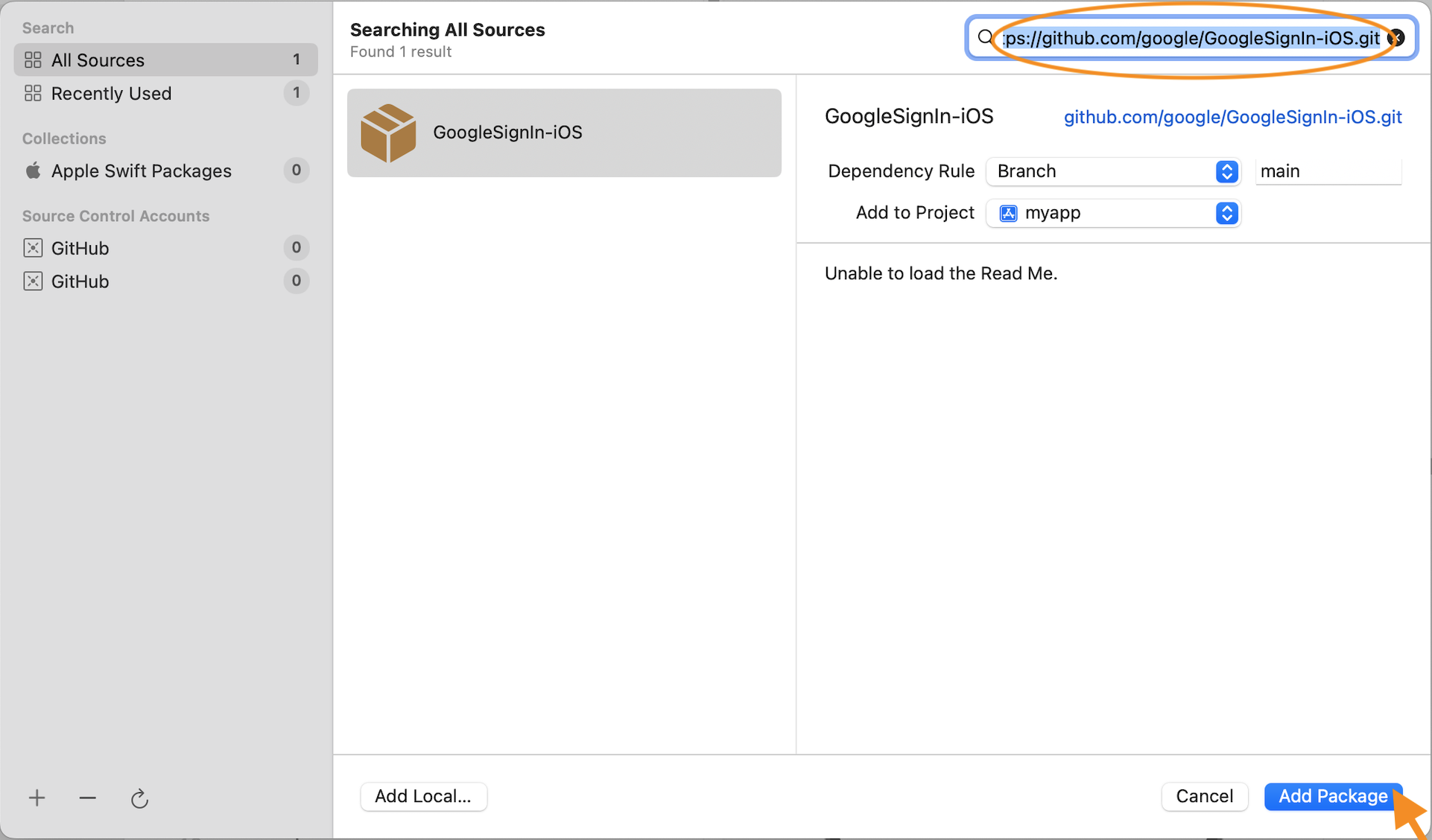
File > Add Packages Dependencies.... - In the search box at the upper right of the
Apple Swift Packageswindow, enter the URL:https://github.com/google/GoogleSignIn-iOSand - Click the
Add Packagebutton (screenshot). - On the
Choose Package Products for GoogleSignIn-iOSpanel, add both theGoogleSignInand theGoogleSignInSwiftlibraries.
You’ve added the Google SignIn SDK to your project!
Creating an OAuth client ID
On the Get started with Google Sign-In for iOS and macOS page, scroll down till you see the big blue
Create an OAuth client ID button. Click on the button. If you’re not
signed in to Google, you’ll be prompted to sign in. You will need a gmail account, not
your umich email address, to create an OAuth client ID. Once you’ve
signed in, click the Create an OAuth client ID button again.
At the linked page,
- Click the big blue
Create an OAuth client IDbutton. - Enter your project name, in this case we will use
swiftUIChatter. - Click
Nextand enter your project name yet again. - The next step is “Where are you calling from?”. Choose
iOS. - This will prompt for a
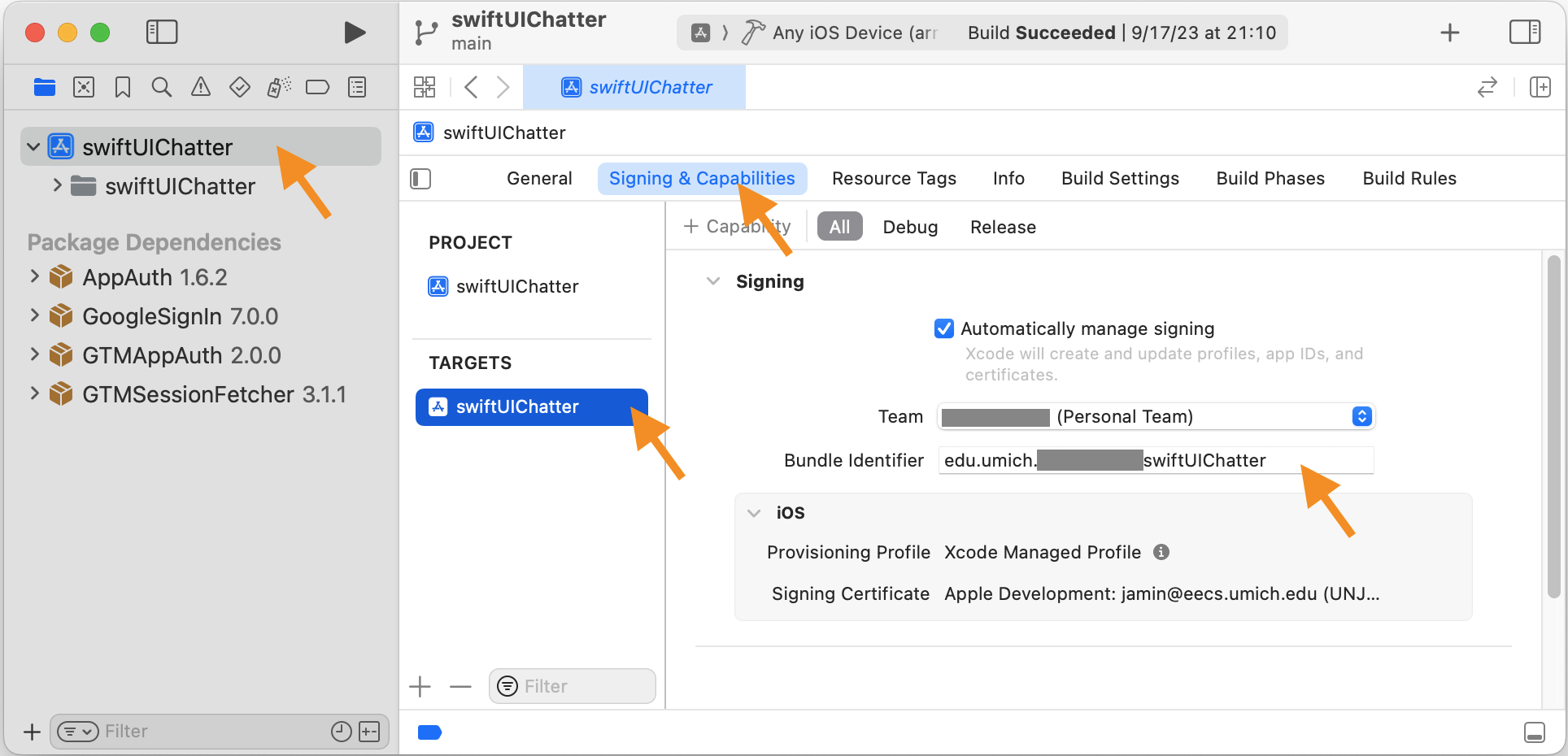
Bundle ID. For this we need to navigate to the Xcode project and get theBundle Identifierunder the Project Information (first item on Xcode’s Project Navigator (left) pane). ClickTARGETS > swiftUIChatter, then on the tab menu along the top of the pane, clickSigning & Capabilities. Copy the bundle identifier to your clipboard (screenshot). The Bundle ID of your Xcode project must match EXACTLY the Bundle ID used for the OAuth client. - Click
Create. - Click
Download Client Configuration. This will download acredentials.plistfile to your Mac (most likely into yourDownloadsfolder).
Next we add your CLIENT_ID and a URL Scheme to Xcode, as required by Google Sign-in:
- Click on the downloaded
credentials.plistfile. - Copy the value of
CLIENT_IDto your clipboard. - In Xcode Project Navigator, select the top
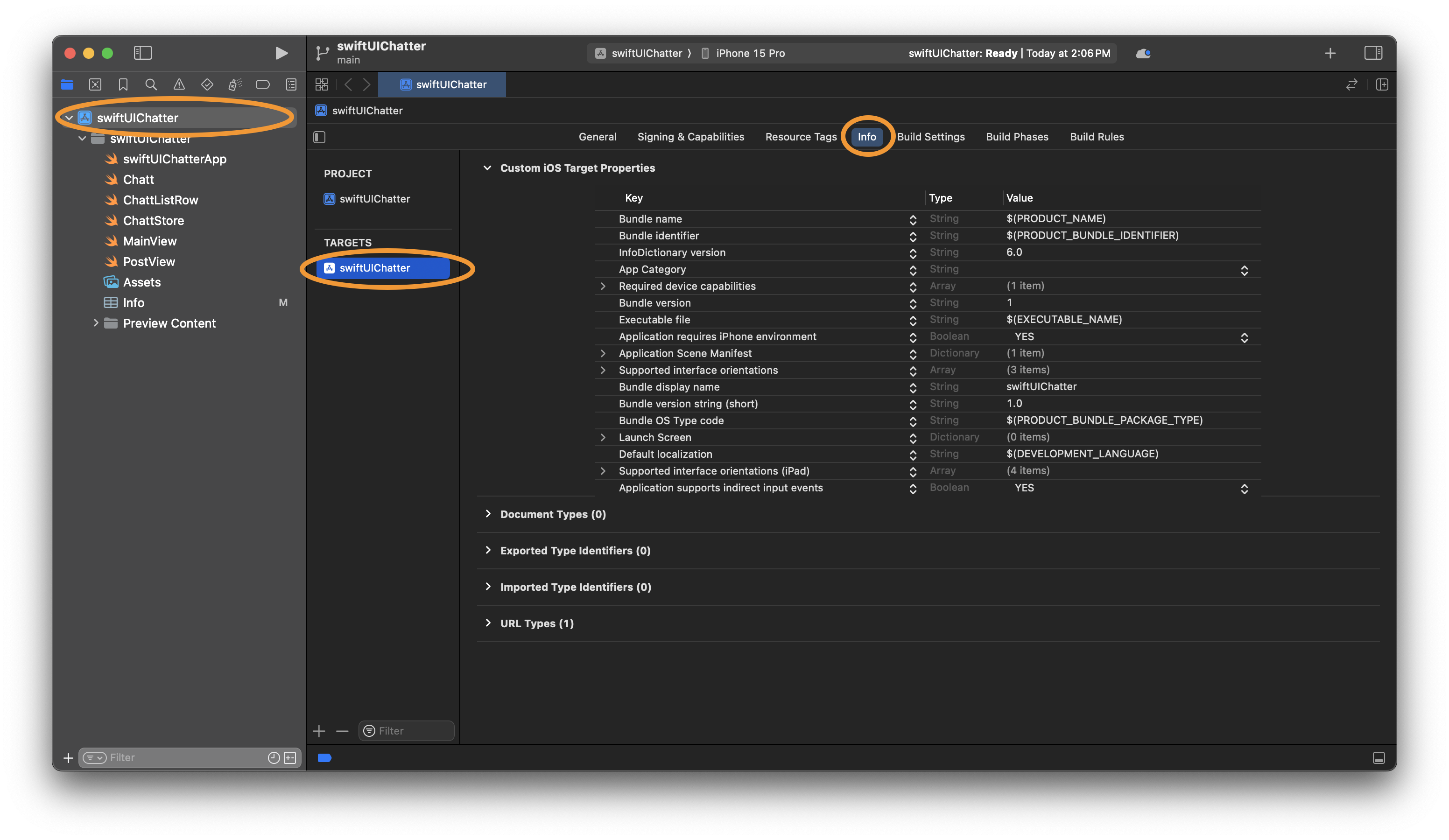
swiftUIChatterto open up the project properties again and selectTARGETS> swiftUIChatter, then navigate toInfoon the tab bar along the top of the pane (screenshot). - Click the
+button on any entry of theInfolist (or right click and selectAdd Row). - In the new row, under
KeyenterGIDClientIDand paste yourCLIENT_IDfrom the clipboard to the correspondingValuefield and hit return. - Go back to your
credentials.plistfile and copy the value ofREVERSED_CLIENT_IDto your clipboard. - Back on the
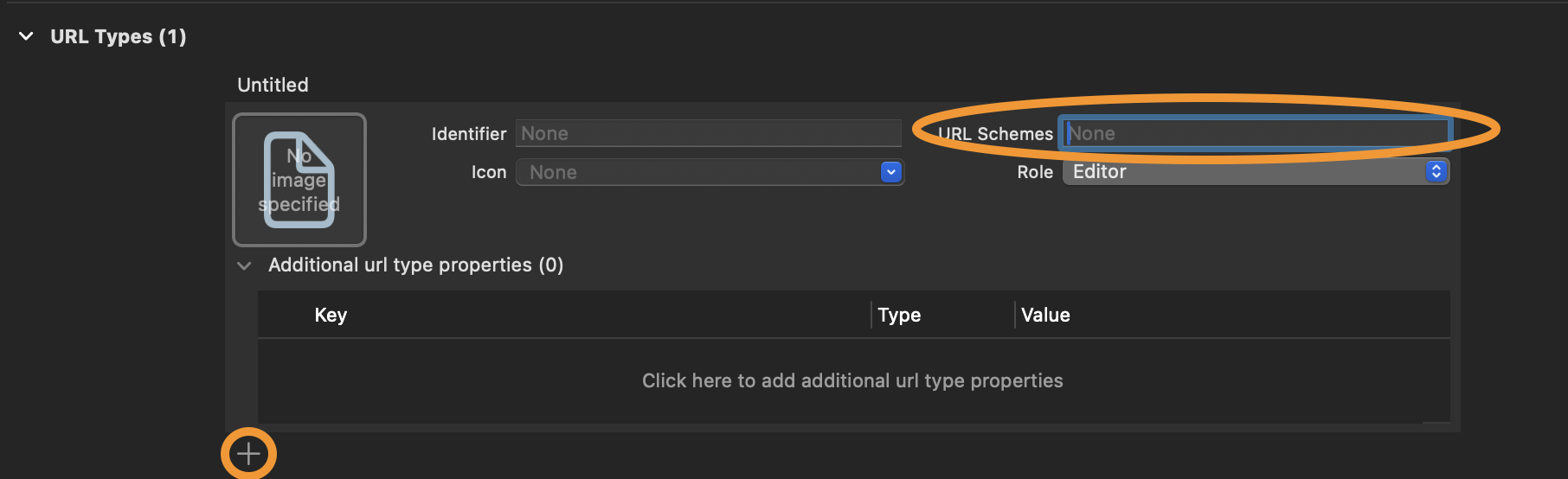
Infotab, scroll down and expandURL Types, then click the+button in theURL Typessection and paste the content of your clipboard into theURL Schemesfield, leaving all of the other fields empty/unchanged (screenshot).
And that’s all you need to obtain a Google OAuth client ID.
Obtaining chatterID
We’ll tackle integrating Google Sign-In as three tasks:
- to use Google Sign-In to obtain a
chatterID, - to use iOS Keychain to securely store
chatterID, and - to use biometric check to control access to iOS Keychain.
In this section we work on obtaining chatterID. For the tutorial, we will re-use
the files Chatt.swift and ChattScrollView.swift from the Chatter tutorial
unmodified.
ChatterID
Create a new Swift source file called ChatterID.swift. We store the chatterID
obtained from the chatterd back end in a singleton called ChatterID:
import SwiftUI

final class ChatterID {
    static let shared = ChatterID()
    private init() {}

    var creator = ""
    var expiration = Date(timeIntervalSince1970: 0.0)
    private var _id: String?
    var id: String? {
        get { Date() >= expiration ? nil : _id }
        set(newValue) { _id = newValue }
    }
}
ChatterID.shared.id is nil when either the user has not obtained a chatterID
from chatterd or the ID has expired.
ChattViewModel
We start with the UI to initiate Google Sign-In so that you can obtain an ID Token to use with and test the back end.
First change the onTrailingEnd property in your ChattViewModel in swiftUIChatterApp.swift file
to a var. Then add the following new properties to ChattViewModel:
    var showOk = false

    var getSignedin: Bool = false
    @ObservationIgnored var signinCompletion: (() async -> Void)?
SubmitButton
To your SubmitButton struct in ContentView.swift, add the following property:
var focus: FocusState<Bool>.Binding
When the user clicks the SubmitButton, we first check if we have a valid chatterID.
If we don’t, we try to obtain one before posting the chatt. Replace the content of
the Task {} block in the Button’s action with:
                if (ChatterID.shared.id == nil) {
                    await withUnsafeContinuation { submitAt in
                        vm.signinCompletion = { () -> Void in
                            vm.onTrailingEnd = ChatterID.shared.creator
                            submitAt.resume()
                        }
                        vm.getSignedin = true
                    }
                    // here be submitAt
                }

                // may still be nil if signin failed
                if (ChatterID.shared.id != nil) {
                    await ChattStore.shared.postChatt(Chatt(name: vm.onTrailingEnd, message: vm.message), errMsg: Bindable(vm).errMsg)
                    if vm.showOk || vm.errMsg.isEmpty {
                        await ChattStore.shared.getChatts(errMsg: Bindable(vm).errMsg)
                        Task (priority: .userInitiated) {
                            withAnimation {
                                scrollProxy?.scrollTo(ChattStore.shared.chatts.last?.id, anchor: .bottom)
                                focus.wrappedValue = false
                            }
                        }
                    // else delete chatterID
                    }
                }
                vm.message = ""
                isSending = false
                vm.showError = !vm.showOk && !vm.errMsg.isEmpty
One modification from the original code is that we now also check for vm.showOk
where we used to check only vm.errMsg. We now use vm.errMsg to carry both
error and advisory messages. We show different alert dialog boxes depending
on the kind of message stored in vm.errMsg, as indicated by vm.showOk.
GoogleSignInButton is given to us as a SwiftUI View, which cannot be called
asynchronously. Instead, we have to provide a completion or callback function
to be run after completing the sign in. The first chunk of the code above does
three things:
- obtains the current code continuation (
submitAt) by callingwithUnsafeContinuation(), - creates a completion closure that simply resumes execution at the saved continuation
(
submitAt.resume()) and assigns it tovm.signinCompletion, and - with
vm.signinCompletionprepared, setsvm.getSignedintotrue, upon which the reactive UI framework launchesSigninView.SigninViewin turn will launch theGoogleSignInButton.
If sign-in is succesful, we update vm.onTrailingEnd to the key creator’s name. This will put the
key creator’s chatts on the trailing/end edge of screen.
If or once we have a valid chatterID, we can post the chatt and then refresh our
trove of chatts from the back end. If posting fails with HTTP status code 401: Unauthorized
however, we suspect the chatterID is somehow invalid and will later delete it from secure storage
so that we can obtain another one afresh the next time the user posts a chatt.
In ContentView, update your call to SubmitButton to:
SubmitButton(scrollProxy: $scrollProxy, focus: $messageInFocus)
Then we add two modifiers: one to show an alert dialog box when vm.showOk is true
and one to show SigninView when vm.getSignedin is true.
After the existing .alert modifier of the VStack of ContentView, add this new one:
        .alert("Advisory", isPresented: Bindable(vm).showOk) {
            Button("OK") {
                vm.errMsg = ""
            }
        } message: {
            Text(vm.errMsg)
        }
We added this alert for better transparency into the workings of the tutorial, in this case to give
feedback when chatterID is retrieved or restored.
Add the following modifier to the VStack of ContentView to initiate sign in:
        .sheet(isPresented: Bindable(vm).getSignedin) {
            SigninView(isPresenting: Bindable(vm).getSignedin)
                .presentationDetents([.fraction(0.25)])
                .presentationDragIndicator(.hidden)
                .interactiveDismissDisabled()
        }
That’s all the changes we’ll make to ContentView.swift.
SigninView
So that we can present it in a sheet, we encapsulate the Google Sign-in button in its
own View. Create a new Swift file, call it SigninView and declare the following
View in it.
import SwiftUI
import GoogleSignIn
import GoogleSignInSwift

struct SigninView: View {
    @Environment(ChattViewModel.self) private var vm
    @Binding var isPresenting: Bool
    private let signinClient = GIDSignIn.sharedInstance
}
We now call GoogleSignInButton() to create a sign-in button and initiate the sign-in
process. To sign in the user, Google Sign-In will present a UIKit-based view for user to
enter their account name, another for their password or biometric check, and perhaps
other user-confirmation views. To presentat these UIKIt views, Google Sign-In requires
a UIKit ViewController. This being an iPhone SwiftUI app, we have only one
ViewController: the rootViewController of the application’s only scene.
In the following code, we first obtain this ViewController and pass it to Google’s
sign-in flow.
The Google Sign-in library is asynchronous but not suspending. Instead, it relies on callback
functions. For Swift 6 MainActor compatibility, we wrap these in suspending functions that
manually bridge callback calls with resumption of the suspending wrappers—as we did with
signinCompletion() above. Add the following extensions to GIDSignin outside your
SigninView:
extension GIDSignIn {
    func signInAsync(withPresenting presenting: UIViewController) async -> String? {
        return await withUnsafeContinuation { cont in
            signIn(withPresenting: presenting) { result, error in
                if let result, let token = result.user.idToken?.tokenString  {
                    cont.resume(returning: token)
                } else {
                    print("Google SignIn error: \(String(describing: error?.localizedDescription))")
                    cont.resume(returning: nil)
                }
            }
        }
    }
    func restorePreviousSignInAsync() async -> String? {
        return await withUnsafeContinuation { cont in
            restorePreviousSignIn() { user, error in
                if let token = user?.idToken?.tokenString  {
                    cont.resume(returning: token)
                } else  {
                    print("Google Restore SignIn error: \(String(describing: error?.localizedDescription))")
                    cont.resume(returning: nil)
                }
            }
        }
   }
}
With those suspending wrappers defined, put the following code inside your SigninView struct:
    var body: some View {
        if let rootVC = (UIApplication.shared.connectedScenes.first as? UIWindowScene)?.keyWindow?.rootViewController {
            VStack {
                Spacer()
                Text("Click once. Signing in with UIKit. Be patient.")
                Spacer()
                GoogleSignInButton {
                    Task {
                        if let token = await signinClient.signInAsync(withPresenting: rootVC) {
                            getChatterID(token)
                        } else {
                            vm.errMsg = "Failed Google Sign-In. Please try again."
                        }
                        isPresenting.toggle()
                    }
                }
                .frame(width:100, height:50, alignment: Alignment.center)
                // refresh or restore
                Spacer()
            }
        }
    }
The frame() modifier sizes the sign-in button and centers it.
To reduce the frequency we prompt user to sign in, with the accompanying laggy trip to UIKit land, we perform two checks prior to showing the sign-in button:
- if the user is already signed in (
signinClient.currentUseris notnil), we “silently” check the freshness of the user’s ID Token, and obtain a new one if needed, without asking the user to sign in again, - if the user is not currently signed in, but their previous sign-in has not expired at Google, we simply restore the previous sign-in and grab a new ID Token.
We perform the above two checks when the sign-in button is displayed by putting
them in the .task modifier of GoogleSignInButton so that these side-effect
functions are not called upon every re-rendering. Replace // refresh or restore
comment above with:
            .task {
                if let token = signinClient.currentUser?.idToken?.tokenString {
                    getChatterID(token)
                    isPresenting.toggle()
                } else if let token = await signinClient.restorePreviousSignInAsync() {
                    getChatterID(token)
                    isPresenting.toggle()
                } // else show GoogleSignInButton and let user sign in
            }
If we’re able to obtain a chatterID or if Google Sign-In returns an error, we
dismiss SigninView(), otherwise, we present the GoogleSignInButton().
In all three success cases: whether we’re refreshing the token of an already signed in user,
or we’re restoring the user’s previous sign-in, or the user is newly signed in, we
always call getChatterID(_:) to obtain a chatterID. Add getChatterID(_:) as
a method of your SigninView struct:
    private func getChatterID(_ token: String) {
        Task (priority: .background) {
            if let _ = await ChattStore.shared.addUser(token, errMsg: Bindable(vm).errMsg) {

                // save chatterID

                await vm.signinCompletion?()  // call the completion after SigninView()
            }
        }
    }
The function getChatterID(_:) calls addUser(_:errMsg:) to
asynchronously add the user to the chatterd back end and obtain a chatterID.
If addUser(_:errMsg:) succeeds, we will later save the chatterID to secure storage,
replacing the // save chatterID comment here, but for now, that’s all we need
for SigninView(). Now we work on the networking code.
The networking
In addition to the getchatts API, we add a new API, adduser. We also modify the
postchatt API, which must now carry an authenticated credential to post a chatt.
Due to this change, we will rename the postchatt API to postauth.
addUser(_:errMsg:)
Add the following addUser(_:errMsg:) function to your ChattStore class.
The method addUser(_:errMsg:) creates a JSON object containing (1) the app’s
OAuth 2.0 Client ID you previously created with Google Sign-In and (2) the idToken
user obtained when signing in. It then asynchronously sends the JSON object to the
chatterd back end with an HTTP POST request.
The back-end server verifies the validity of the presented idToken with Google. If
verification is successful, the back end returns a chatterID (a String). Subsequently,
the back end will identify the user by this chatterID, for the lifetime of the chatterID.
If the token cannot be validated for whatever reason, addUser(_:errMsg:)
returns nil. The back end also obtains the name registered with the ID Token and returns
it along with the chatterID. We will use the registered name to align retrieved chatts right (belonging to
the user) or left.
Every now and then Google does not return a registered name. Then we default the “registered name” to
"Profile NA", which messes up our UI, but doesn’t otherwise impact the workings of the app.
Replace YOUR_APP'S_OAUTH2.0_CLIENT_ID below with your app’s OAuth 2.0 Client ID,
retain the quotation marks:
You can retrieve your
clientIDfrom thecredentials.plistfile you downloaded from Google earlier.
    func addUser(_ idToken: String?, errMsg: Binding<String>) async -> String? {
        guard let idToken else {
            return nil
        }

        guard let apiUrl = URL(string: "\(serverUrl)/adduser") else {
            errMsg.wrappedValue = "addUser: Bad URL"
            return nil
        }
        let authObj = ["clientID": "YOUR_APP'S_OAUTH2.0_CLIENT_ID",
                       "idToken" : idToken]
        guard let requestBody = try? JSONSerialization.data(withJSONObject: authObj) else {
            errMsg.wrappedValue = "addUser: JSONSerialization error"
            return nil
        }

        var request = URLRequest(url: apiUrl)
        request.httpMethod = "POST"
        request.setValue("application/json; charset=utf-8", forHTTPHeaderField: "Content-Type")
        request.httpBody = requestBody

        do {
            let (data, response) = try await URLSession.shared.data(for: request)

            if let http = response as? HTTPURLResponse, http.statusCode != 200 {
                errMsg.wrappedValue = "addUser: \(http.statusCode) \(HTTPURLResponse.localizedString(forStatusCode: http.statusCode))\n\(apiUrl)"
                return nil
            }

            // obtain username and chatterID from back end

        } catch {
            errMsg.wrappedValue = "addUser: POSTing failed \(error)"
            return nil
        }
    }
If we did not retrieve a valid chatterID from the back end, the catch block
updates the error message and returns nil.
Otherwise, we first deserialize the back end’s response
to our POST above, and if the deserialization is successful, we set the creator of the
chatterID in the ChatterID singleton to the registered name returned by Google—note that the creator name cannot be longer than 32 characters.
We also
store the chatterdID returned by the back end along with its computed expiration time
in the ChatterID singleton.
If all goes well, addUser(_:errMsg:) returns the chatterID. Replace the // obtain username and
chatterID from back end comment above with:
            guard let chatterObj = try? JSONSerialization.jsonObject(with: data) as? [String:Any] else {
                errMsg.wrappedValue = "addUser: JSON deserialization"
                return nil
            }

            if let creator = chatterObj["username"] as? String {
                if creator.count > 32 {
                    errMsg.wrappedValue = "addUser: creator name (\(creator) longer than 32 characters"
                    return nil
                }
                ChatterID.shared.creator = creator
            }
            ChatterID.shared.id = chatterObj["chatterID"] as? String
            ChatterID.shared.expiration = Date()+(chatterObj["lifetime"] as! TimeInterval)

            return ChatterID.shared.id
postChatt(_:errMsg:)
The postauth API, replacing the postchatt API, requires that chatterID be sent along with each chatt.
It first verifies that the chatterID exists in the database and has not expired. If so, the new chatt,
along with the user’s username (retrieved from the database) will be added to the chatts database. Otherwise,
HTTP error 401 is returned to the client.
We need to make two changes to postChatt(_:errMsg:) in ChattStore:
- replace:
"name": chatt.name,with:
"chatterID": ChatterID.shared.id, - change
postchattin theapiUrldeclaration topostauth
We can use the rest of postChatt(_:errMsg:) unmodified.
That’s all we need to do to obtain and use chatterID. Next we will look at how to
store the chatterID in iOS Keychain and how to use biometric check to control
access to the chatterID stored in the Keychain.
At this point, we suggest you switch gear to work on your back end and return here after you’ve completed your back end. You’ll need the ID Token obtained from Google Sign-In to test your back end, which is why we had you work on the front end up to this point first.
The ID Token is the first argument passed to addUser(_:errMsg:) above.
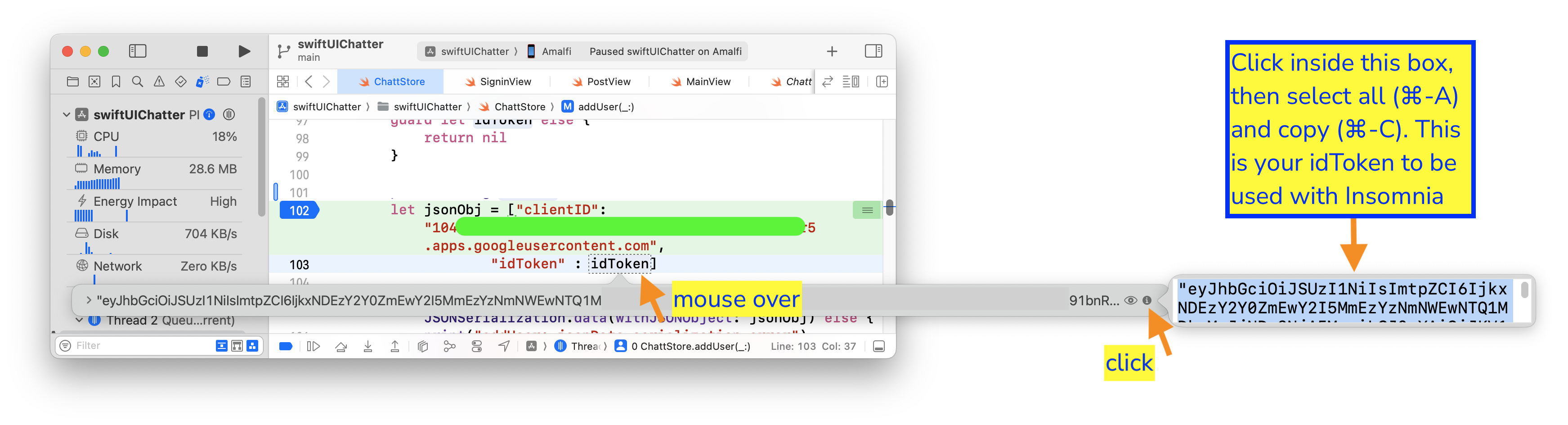
Put a break point in addUser(_:errMsg:) and run your front end to this
break point. In Xcode, mouse over the idToken variable inside the
addUser(_:errMsg:) function, then click on the i icon on the extreme
right of the box that pops up. The idToken will be displayed as plain text on
yet another pop up box. Click in the box, then select all and copy (⌘-A, ⌘-C).
This is your idToken to be used when testing your back end.
Keychain with biometric access control
We now store the chatterID obtained from the back end in iOS’s Keychain, encrypted. Keychain uses iPhone’s Secure Enclave to hold our
keys, with key access protected by biometric authentication. Recall that the only purpose of the biometric check is to control access to the stored chatterID across invocations of the app. It doesn’t make the sign-in process itself any more secure.
Let’s first figure out how to securely store ChatterID in Keychain. Then we will
look at how to use biometric control for Keychain access. The following instructions
are heavily based on Using the iOS Keychain with Biometrics.
Keychain and Secure Enclave
Keychain is used to store small encrypted data (such as passwords and chatterID)
in an SQLite database. The key that encrypts the data itself is generated and stored
in iPhone’s Secure Enclave. “Secure Enclave” or “trusted execution environment” (TEE) is a piece of hardware dedicated to performing cryptographic functions and storing secret keys. It has a limited set of APIs. To use it, you ask it to create a key for you. It returns a handle/alias for the key, but not the key itself. You can give the hardware plain text to be encrypted using the key it is holding for you. Or you give it encrypted text to be decrypted using the key under your name. The key itself never leaves the hardware’s possession and you can only ask the hardware to do encryption or decryption.
Since ChatterID is not an encryption key, storing it encrypted in the Keychain fits our purpose.
Keychain storage
In swiftUIChatterApp, we load the previous session’s chatterID from
the Keychain and update the name shown on the trailing/end edge if there’s a stored chatterID
creator’s name. Add the following init() block to your swiftUIChatterApp struct:
init() {
    Task(priority: .background) { [self] in
        await ChatterID.shared.open(errMsg: Bindable(vm).errMsg, showOk: Bindable(vm).showOk)
        if !ChatterID.shared.creator.isEmpty {
            vm.onTrailingEnd = ChatterID.shared.creator
        }
    }
}
open(errMsg:showOk:)
We define open(errMsg:showOk:) as an asynchronous method of the ChatterID class.
The “uninitialized expiration time” of ChatterID defaults to Unix epoch (1/1/70).
When ChatterID’s expiration time is not the default, it indicates that we have previously called open(), opened SharedPreferences, and tried to load previous session’s
chatterID; in which case, we just return from open(). Add open(errMsg:showOk:) as a method of the ChatterID` class:
    func open(errMsg: Binding<String>, showOk: Binding<Bool>) async {
        if expiration != Date(timeIntervalSince1970: 0.0) {
            // not first launch
            return
        }

        // search for chatterID

    }
Next we search the Keychain for chatterID and specify a date format we want to use.
The Keychain API on iOS dates back to its Objective-C days. Programming the Keychain
has a “low-level” feel to it. Replace // search for chatterID with:
        let searchFor: [CFString: Any] = [
            kSecClass: kSecClassGenericPassword,
            kSecAttrDescription: "ChatterID",
            kSecReturnData: true,
            kSecReturnAttributes: true,
        ]

        var itemRef: AnyObject?
        let searchStatus = SecItemCopyMatching(searchFor as CFDictionary, &itemRef)

        let df = DateFormatter()
        df.dateFormat="yyyy-MM-dd HH:mm:ss '+'SSSS"

        // handle search results
The code search for an item of “generic password” security class in the Keychain. The item has attribute description of "ChatterID". If the item is found, we want both the value associated with the attribute and all of its other attributes to be returned.
If the search is successful, store the found item value in the id property of ChatterID class, and store the Label attribute of the found item in the expiration property of ChatterID. Replace // handle search results with the following code:
        switch (searchStatus) {
        case errSecSuccess:      // found keychain
            if let item = itemRef as? NSDictionary,
               let data = item[kSecValueData] as? Data,
               let dateStr = item[kSecAttrLabel] as? String,
               let idExp = df.date(from: dateStr),
               let idCreator = item[kSecAttrCreator] as? String
            {
                creator = idCreator
                if Date() >= idExp {
                    errMsg.wrappedValue = "ChatterID from last session expired. Will get a new one when you post."
                } else {
                    errMsg.wrappedValue = "ChatterID available from last session."
                    id = String(data: data, encoding: .utf8)
                    expiration = idExp
                }
                showOk.wrappedValue = true
            } else {
                errMsg.wrappedValue = "ChatterID found but invalid...deleting from KeyChain."
                await delete(errMsg)
            }

        // if not found, insert template
If the item is not found, we insert a template into Keychain for "ChatterID" item
with unitialized (“blank”) value and expiration time set to the default “1/1/70”.
We insert the “blank” template here so that when we receive a chatterID from the
back end later, all we’ll need to do is to update the item. Replace // if not found,
insert template comment with:
        case errSecItemNotFound: // add template

            // add biometric check

            let item: [CFString: Any] = [
                kSecClass: kSecClassGenericPassword,
                kSecAttrDescription: "ChatterID",
                kSecAttrLabel: df.string(from: expiration),
                kSecAttrCreator: creator as CFString,
                // biometric check attribute
            ]

            let addStatus = SecItemAdd(item as CFDictionary, nil)
            if (addStatus != 0) {
                errMsg.wrappedValue = "ChatterID.open add: \(String(describing: SecCopyErrorMessageString(addStatus, nil)!))"
            }

        // search error
We close off open(errMsg:showOk:) with the following code for the default case. Replace
// search error with:
        default:
            errMsg.wrappedValue = "ChatterID.open search: \(String(describing: SecCopyErrorMessageString(searchStatus, nil)!))"
        }
Keychain update
Every time we obtain a new chatterID from the back end, we save it to the Keychain: in the
getChatterID(_:) function of your SigninView, after successful return from addUser(_:errMsg:),
replace the comment, // save chatterID, with the following:
                await ChatterID.shared.save(errMsg: Bindable(vm).errMsg, showOk: Bindable(vm).showOk)
                if vm.errMsg.isEmpty {
                    vm.showOk = true
                    vm.errMsg = "ChatterID refreshed."
                }
save(errMsg:showOk:)
Back in the ChatterID.swift file, define save(errMsg:showOk:) as a method of the ChatterID class:
    func save(errMsg: Binding<String>, showOk: Binding<Bool>) async {
        let df = DateFormatter()
        df.dateFormat="yyyy-MM-dd HH:mm:ss '+'SSSS"

        let item: [CFString: Any] = [
            kSecClass: kSecClassGenericPassword,
            kSecAttrDescription: "ChatterID",
        ]

        let updates: [CFString: Any] = [
            kSecValueData: id?.data(using: .utf8) as Any,
            kSecAttrLabel: df.string(from: expiration),
            kSecAttrCreator: creator as CFString
        ]

        let updateStatus = SecItemUpdate(item as CFDictionary, updates as CFDictionary)
        if (updateStatus != 0) {
            errMsg.wrappedValue = "\(String(describing: SecCopyErrorMessageString(updateStatus, nil)!))\nChatterID can be used to post, but you will be asked to sign in again when you restart Chatter"
        } else {
            showOk.wrappedValue = true
            errMsg.wrappedValue = "ChatterID saved"
        }
    }
The code defines two dictionary variables: the item variable describing the item we want to update (in this case an item of “generic password” security class with attribute description "ChatterID") and the updates variable containing the fields of the item we want to update (in this case, the value associated with the item and its Label and Creator attributes).
Then we call the secure update method, passing it the two dictionaries, and handle the update
results.
To test your implementation of Keychain storage, close your Chatter app after making a post, re-launch it within your chatterID lifetime (which you set in the back end), and it should allow you to post without requiring sign in again. You may also want to play with shorter or longer chatterID lifetime in the back end and see whether you’re asked to sign in again when expected.
delete(_:)
Finally, add the delete(_:) method to the ChatterID class to delete your Keychain entry. If the back end
fails to validate the presented chatterID, you can force delete the chatterID from your Keychain to
obtain a new one:
    func delete(_ errMsg: Binding<String>) async {
        let item: [CFString: Any] = [
            kSecClass: kSecClassGenericPassword,
            kSecAttrDescription: "ChatterID",
        ]

        let delStatus = SecItemDelete(item as CFDictionary)
        if (delStatus != 0) {
            errMsg.wrappedValue += "ChatterID.delete: \(String(describing: SecCopyErrorMessageString(delStatus, nil)!))"
        } else {
            errMsg.wrappedValue += "ChatterID: deleted!))"
        }
    }
Then in your SubmitButton structure in ContentView.swift, if the back end returns HTTP status
code “401: Unauthorized”, call delete by replacing the comment // else delete chatterID with:
                    } else if vm.errMsg.contains("401") {
                        // delete potentially invalid chatterID from Keychain
                        await ChatterID.shared.delete(Bindable(vm).errMsg)
Biometric check
To add biometric check to control access to your key chain, we only need to make three small changes.
- Add the
Privacy - Face ID Usage Descriptionkey to yourInfolist:even if you only have Touch ID
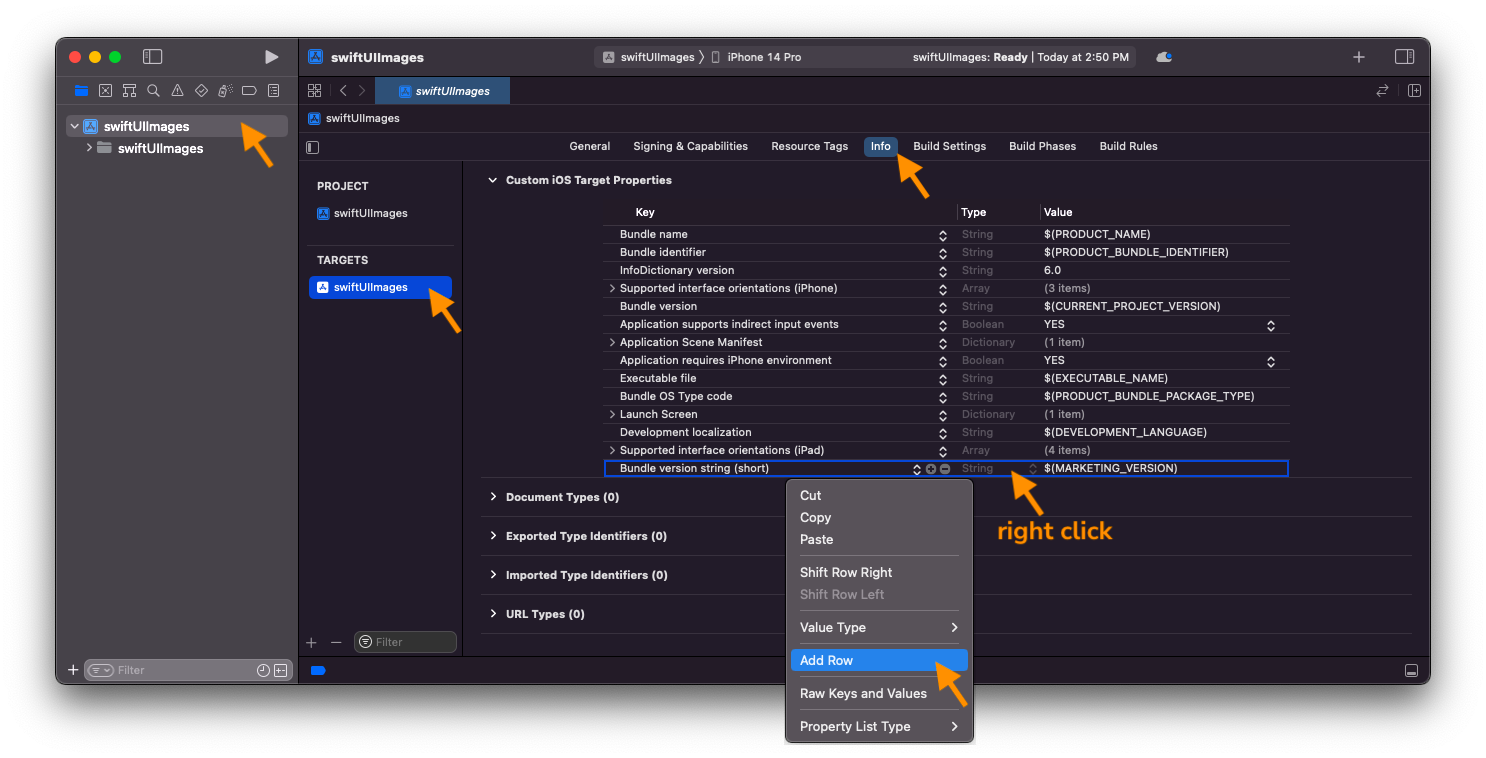
- Click on your project name (first item in your Xcode Project Navigator (left) pane), then click on the
Infotab. - In the
Custom iOS Target Propertiessection, right click (or ctl-click) any row in the table, - choose
Add Row(screenshot), and - in the drop down menu, select
Privacy - Face ID Usage Descriptionand, in theValuefield to the right enter a descriptive usage such as, “to access chatterID in Keychain”
- Click on your project name (first item in your Xcode Project Navigator (left) pane), then click on the
- In the
open(errMsg:showOk:)method of theChatterIDclass, forcase errSecItemNotFound:, replace the// add biometric checkcomment with:// biometric check let accessControl = SecAccessControlCreateWithFlags(nil, kSecAttrAccessibleWhenPasscodeSetThisDeviceOnly, .userPresence, nil)! - Still within the
case errSecItemNotFound:block, add access control to the item dictionary by replacing the// biometric check attributecomment with:kSecAttrAccessControl: accessControl // biometric checkThe
kSecAttrAccessControl: accessControlfield enables access control. The.userPresenceflag requires the user to be present, which translates to a FaceID or Touch ID check, depending on availability, or, as fallback, prompt for passcode.
Biometric prompt on simulator (optional)
You can skip this part if you don’t plan to run this tutorial on the iPhone simulator.
We explain the use of simulated biometric prompt in Getting Started with iOS
Development. To use it, first add
import LocalAuthentication to the top of your ChatterID file, then add the following property to
your ChatterID class:
    #if targetEnvironment(simulator)
    private let auth = LAContext()
    #endif
Finally add the following code to ChatterID’s open(errMsg:showOk:) and save(errMsg:showOk:)
methods. In open(errMsg:showOk:), add the code after the initial expiration check. In
save(errMsg:showOk:), add it first thing. Replace <KEYCHAIN_OP> in the following with “Open” or
“Save”” respectively.
        #if targetEnvironment(simulator)
        guard let _ = try? await auth.evaluatePolicy(.deviceOwnerAuthentication, localizedReason: "to allow simulator to save ChatterID to KeyChain") else { errMsg.wrappedValue = "<KEYCHAIN_OP> Keychain failed"; return }
        #endif
Congratulations! You’re done with the front end! And with that, you’re also with this tutorial!
Run and test to verify and debug
Once you have your back end set up, run your front end against your back end—mada.eecs.umich.edu is not available for this tutorial. You will not get full credit if your front end is not set up to work with your back end!
You may need to sign out from your Google account on your device to test Google Sign-In. On your development host (not on your device), open up your browser and go to a Google property, e.g., Gmail. At the upper right corner of your browser, click on your avatar icon and tap on Manage your Google Account button on the drop-down menu. Once in your Google Account, click on the Security menu on the left. In Security, scroll down until you see Your devices card. At the bottom of the card, click on Manage your devices. Find your device and click on the 3-vertical dot menu and select Sign out.
Front-end submission guidelines
Unlike in previous tutorials and projects, there is one CRUCIAL extra step to do before you push your lab to GitHub: ensure that the Bundle identifier under the Signing & Capabilities tab of your Project pane is the one you used to create your OAuth client ID or else we won’t be able to test your client ID.
We will only grade files committed to the main branch. If you use multiple branches, please merge them all to the main branch for submission.
Push your front-end code to the same GitHub repo you’ve submitted your back-end code:
- Open GitHub Desktop and click on
Current Repositoryon the top left of the interface - Click on the GitHub repo you created at the start of this tutorial
- Add Summary to your changes and click
Commit to mainat the bottom of the left pane - If you have pushed code to your repo, click
Pull Originto synch up the repo on your laptop - Finally click
Push Originto push all changes to GitHub
Go to the GitHub website to confirm that your front-end files have been uploaded to your GitHub repo and that your repo has a folder structure outline similar to the following. If your folder structure is not as outlined, our script will not pick up your submission and, further, you may have problems getting started on latter tutorials. There could be other files or folders in your local folder not listed below, don’t delete them. As long as you have installed the course .gitignore as per the instructions in Preparing GitHub for Reactive Tutorials, only files needed for grading will be pushed to GitHub.
  reactive
    |-- chatter.zip
    |-- chatterd
    |-- chatterd.crt
    |-- llmprompt.zip
    |-- signin
        |-- swiftUIChatter
            |-- swiftUIChatter.xcodeproj
            |-- swiftUIChatter
    # and other files or folders
Verify that your Git repo is set up correctly: on your laptop, grab a new clone of your repo and build and run your submission to make sure that it works. You will get ZERO point if your tutorial doesn’t build, run, or open.
IMPORTANT: If you work in a team, put your team mate’s name and uniqname in your repo’s README.md (click the pencil icon at the upper right corner of the README.md box on your git repo) so that we’d know. Otherwise, we could mistakenly think that you were cheating and accidentally report you to the Honor Council, which would be a hassle to undo. You don’t need a README.md if you work by yourself.
Review your information on the Tutorial and Project Links sheet. If you’ve changed your teaming arrangement from previous tutorial’s, please update your entry. If you’re using a different GitHub repo from previous tutorial’s, invite eecsreactive@umich.edu to your new GitHub repo and update your entry.
References
- Start integrating Google Sign-In into your iOS app
- Google Sign-in for iOS and macOS
- GIDAuthenticaton-getTokensWithHandler
- Bringing up the Google Signin Screen in SwiftUI
- JWT (JSON Web Token) (in)security
- Date
Secure Enclave
Keychain
- Using the iOS Keychain in Swift
- Using the Keychain to Manage User Secrets
- SecItemAdd(::)
- SecItemCopyMatching(::)
- SecItemUpdate(::)
- Item Class Keys and Values
- Item Attribute Keys and Values
- Security Framework Result Codes
- Restricting Keychain Item Accessibility
Biometric
- Using the iOS Keychain with Biometrics
- Accessing Keychain Items with Face ID or Touch ID
- Get the biometric authentication prompt for protected keychain items in the iOS simulator
| Prepared by Wendan Jiang, Alexander Wu, Benjamin Brengman, Ollie Elmgren, Nowrin Mohamed, Xin Jie ‘Joyce’ Liu, Chenglin Li, Yibo Pi, and Sugih Jamin | Last updated: March 15th, 2026 |